Showing posts with label Knowledge. Show all posts

Tuesday, 8 March 2011

Honeycomb APIs power tablet-friendly Android apps

Android 3.0, codenamed Honeycomb, introduces a completely new user interface suitable for tablet devices. Google has also extended the platform's APIs so that third-party developers can make their applications work better on large form factors.
The Android 3.0 SDK preview, which was released last week, offers an early look at some of the new features available to developers. We've been scouring the documentation and looking at the source code examples to see how all the pieces fit together. In this article, we will give you a concise overview of several key new features.

ActionBar

One of the most visible changes in Honeycomb applications is the new ActionBar, which replaces the titlebar at the top of the screen. The ActionBar is responsible for displaying the title, the toolbar buttons for significant actions, and a standard menu button that provides access to additional actions that aren't exposed through toolbar buttons.
It's also possible to use the ActionBar for navigation. It provides methods for adding and removing tabs that look like those used for filtering in the new Android 3.0 application drawer. The reference documentation also describes a "list" navigation mode, where the application title in the ActionBar is replaced with a drop-down menu.
Developers can optionally stuff an arbitrary view into the ActionBar, making it possible to populate it with custom widgets and non-standard elements.

Fragments

Another major new feature in the Android 3.0 SDK is the "fragment" system, which makes user interfaces more modular and simplifies the process of developing applications with multiple panes. Developers can use fragments to define user interface pieces that are combined in layouts within an Activity. The application can control how the fragments are displayed to the user, making it possible to conditionally use different presentations depending on screen size and orientation. This is especially useful for building applications that work on both tablets and smartphones.
The FragmentLayout demo that Google bundles with the SDK is a particularly good example of how this capability can be used. It displays a list of Shakespeare plays and will show a text excerpt from each when it is selected from the list. The list itself and all of the individual excerpts are implemented as fragments. The demo has two separate XML layouts: a single-column layout for portrait orientation that shows only the list, and a multi-column layout for landscape orientation that shows the list on the left and a separate pane on the right for the excerpts.
When the user selects a play from the list, the program will determine how to show the excerpt based on the orientation. If the right-hand pane exists (a condition that occurs only when the landscape XML layout is used), the program will display the desired excerpt fragment in that space. If the pane doesn't exist, then the program will assume that it is being used in portrait orientation and will display the text excerpt in a new activity that replaces the list.
The FragmentManager class can be used to control fragment transactions—operations that manipulate the fragments within an activity, such as hiding and showing fragments or replacing one fragment with another. Android can automatically animate the transitions when such changes occur. Developers can also use the FragmentManager to maintain a stack with the history of fragment transactions.
The transaction history comes in handy if you want the user to be able to roll back through fragment changes by hitting the platform's standard back button. There's also a breadcrumb widget that graphically represents the user's position in the fragment stack history. It can be embedded in the ActionBar for easier navigation through the stack.
A specialized kind of fragment called PreferenceFragment makes it easier for developers to create settings pages for configuring their applications. The PreferenceFragment will automatically bind the state of the preference widgets that it hosts with values in a SharedPreferences instance. It builds on the existing capabilities provided by the PreferenceActivity class. When PreferenceFragments are properly used with a PreferenceActivity, the preferences will automatically be displayed in a two-column view on larger screens.

Drag-and-drop

In order to support richer touch-based interaction with Android applications, Google has added generic drag-and-drop APIs. This feature isn't fully documented yet, but there is an instructive example in Google's API demo code. 
The demo displays large dots on the screen and allows the user to drag them by long-pressing. To trap drag-and-drop events, developers can simply assign a callback with the setOnDragListener method. It will pass in a DragEvent object that can be queried to determine if the drag event is the beginning or end of a drag-and-drop operation.

Conclusion

In addition to these new features, Google has also added richer clipboard APIs, an extensible DRM framework, support for processors with multiple cores, and a new hardware-accelerated rendering framework that will improve the performance of Android's user interface drawing. All of these new capabilities bring value to the platform and will help developers build richer and more sophisticated applications.
We would normally provide links to the code examples described above. Unfortunately, Google hasn't published the Android 3.0 documentation or code samples on the official Android reference website yet, but they can be obtained by downloading the SDK. All of the code examples discussed in this article can be found under the samples/android-Honeycomb/ApiDemos subdirectory.
Honeycomb SDK is still a preview release. The APIs are not yet final and are still subject to change, though we think it's unlikely that there will be major changes between now and when the first Honeycomb devices are launched in February. Applications that take advantage of the new features won't be accepted into the Android Market until Google makes the Android 3.0 release final. For more information, you can refer to the SDK preview page on the Android Developer website.

Wednesday, 26 January 2011

Show you the way to change a default application on Android

When you first try an alternative launcher or Web browser, Android asks if you'd like that application to be the default from now on. You may say yes and then come to regret it later on – perhaps you've decided you like another launcher better, or wish to go back to using the stock Android browser.

While you could always uninstall the application you no longer wish to be the default, that's a bit of a brute-force solution. Perhaps you still want it on your system, but only wish to use it every now and then.

To make an app stop being a "default application" for a certain type of action, do this:

1) Go to Settings > Applications > Manage applications.
2) Locate your application in the list. If the list is too long, you can hit the Running tab, because your app most likely is still running somewhere in the background.
3) Once you've located it, tap its name.
4) You will now find yourself in the Application info screen. Scroll down until you see the heading which says Launch by default.
5) Press the Clear defaults button, shown in the screenshot.

When you next try to perform the operation previously associated with this app (launch a browser, go to the home screen, etc.), you will be presented with a dialog letting you choose what app should be used. 

Source: switched

Friday, 14 January 2011

How to manage your Android contacts?

How to manage your Android contacts?
Mobile devices have become lifelines for connecting to family, friends, business associates, and clients. With your contacts list growing exponentially, you need to know the best ways to manage this information. Here are some ways Android device owners can keep their contacts list under control.

Google is your friend

The best advice I can offer is to make sure every contact you create on your Android phone is a Google contact. Why is this so important? Because you can manage your Google contacts from within your Google account. This will save you from fumbling around on your mobile phone’s keyboard to try to arrange, categorize, create, edit, and delete those contacts.
If you want the non-Google contacts that are already on your Android phone to be migrated to Google contacts, there is no way to do this directly on the phone; instead, you have to do an export/import. You have to export the contacts to a CSV file to your SD card and then import that file into Google.
To export those contacts, you need to use the free app called UiA - Backup Contacts (it’s available on the Android Market). After you install the app, you’ll see it listed in your Application drawer labeled Backup Contacts. Tap that application, agree to the license, and you’ll see the main window (Figure A), where you can: Backup Now, View Your CSV Contact List, Upload To Dropbox, or Send To Email.
 
Figure A

When you export the contacts using Backup Contacts, that CSV file will be saved on the root of your SD card. The file that is saved to your CSV card will be named Backup.Contacts.TODAYS_DATE.csv; TODAYS_DATE is the date the contacts were saved. With that file on your SD card, you can mount the SD card, copy the file to your PC, and then import that file into your Google account contacts.
This method does not convert the contacts on your phone to Google contacts, so you might find some duplicate entries in your contacts. You can delete the contacts on your phone once you know they’re secured in your Google account.

Groups

Another tip for organizing your contacts is to use groups. Groups allow you to sort, search, and find your contacts much easier.
 
Note: All Google contacts will belong to their own group, “Google.” You cannot reassign those contacts or assign them to multiple groups. You can manage your Google contacts from within your Google account, but you will not be able to see those actions (such as adding Google contacts to groups within Google) on your Android phone.
For contacts that are on your phone, you can create groups by following these steps:
1. Open the Contacts application.
2. Tap the Groups tab (Figure B).
3. Tap the Menu button.
4. Tap the Create button.
5. Create your new group.
 
Figure B

The Groups tab also includes all social media accounts you have authenticated on your phone. Follow these steps to assign a contact to a group:
1. Tap the Groups tab.
2. Tap the Add Member button.
3. Select all contacts you want to join the group.
4. Tap the Add button.

Linked Contacts

A very nice feature of the Android contact system is Linked Contacts. A Linked Contact is a way to link one contact to a related contact. For instance, you might want to link all the employees of a specific department. To do this, open one of those contacts and scroll down to the bottom. Tap the section labeled Linked Contacts (Figure C) and then tap the Add Link Contact button. On the next screen, find the contact you want to link, and it will be linked. Repeat these steps to link more contacts. You are limited to five linked contacts.
 
Figure C

Samsung Captivate-specific tips

The next two features I’ll highlight — Directional Swiping and Speed Dialing — are unique to the Samsung Captivate line of phones.
 
Directional Swiping
From your Contacts application, the Directional Swiping feature allows you to quickly phone or message a contact depending upon which way you swipe that contact. If you swipe the target contact to the right, you place a phone call; if you swipe the target contact to the left, you send an SMS message. This feature is incredibly handy and should be made available to all Android phones.
 
Speed Dialing
To add a contact to speed dialing, follow these steps:
1. Open the Contacts application.
2. Tap the Menu button.
3. Tap the Speed Dial button.
4. Tap the number for which you want to add a contact.
5. Find and select the contact.

Learn Java for Android Development

Product Description

Android development is hot, and many programmers are interested in joining the fun. However, because this technology is based on Java, you should first obtain a solid grasp of the Java language and its foundational APIs to improve your chances of succeeding as an Android app developer. After all, you will be busy learning the architecture of an Android app, the various Android-specific APIs, and Android-specific tools. If you do not already know Java fundamentals, you will probably end up with a massive headache from also having to quickly cram those fundamentals into your knowledge base.

Learn Java for Android Development teaches programmers of any skill level the essential Java language and foundational Java API skills that must be learned to improve the programmer’s chances of succeeding as an Android app developer. Each of the book’s 10 chapters provides an exercise section that gives you the opportunity to reinforce your understanding of the chapter’s material. Answers to the book’s more than 300 exercises are provided in an appendix. Once you complete this book, you will be ready to dive into Android, and you can start that journey by obtaining a copy of Beginning Android 2.

Additionally, author Jeff Friesen will provide supplementary material (such as 6 more chapters) on his javajeff.mb.ca website, available over the next few months following this book's release.

What you’ll learn

    * The Java language: This book provides complete coverage of nearly every pre-Java version 7 language feature (native methods are briefly mentioned but not formally covered). Starting with those features related to classes and objects, you progress to object-oriented features related to inheritance, polymorphism, and interfaces. You then explore the advanced language features for nested types, packages, static imports, exceptions, assertions, annotations, generics, and enums. Continuing, you investigate strictfp, class literals, synchronized, volatile, the enhanced for loop statement, autoboxing/unboxing, and transient fields. The book also briefly presents most (if not all) of Java version 7’s language features, although not much is said about closures or modules (which were not finalized at the time of writing).
    * Java APIs: In addition to Object and APIs related to exceptions, you explore Math, StrictMath, BigDecimal, BigInteger, Package, Boolean, Character, Byte, Short, Integer, Long, Float, Double, Number, the References API, the Reflection API, String, StringBuffer, System, the Threading API, the collections framework, the concurrency utilities, the internationalization APIs, the Preferences API, Random, the Regular Expressions API, File, RandomAccessFile, stream classes, and writer/reader classes. You will also get a tiny taste of Swing in the context of internationalization.
    * Tools: You will learn how to use the JDK’s javac (compiler), java (application launcher), javadoc (Java documentation generator), and jar (Java archive creator, updater, and extractor) tools. You will also receive an introduction to the NetBeans and Eclipse integrated development environments. Although you can develop Android apps without NetBeans or Eclipse, working with these IDEs is much more pleasant.

Who this book is for

This book is for any programmer (including existing Java programmers and Objective-C (iPhone/iPad) programmers) of any skill level who needs to obtain a solid understanding of the Java language and foundational Java APIs before jumping into Android app development.

Table of Contents

   1. Getting Started with Java
   2. Learning Language Fundamentals
   3. Learning Object-Oriented Language Features
   4. Mastering Advanced Language Features Part 1
   5. Mastering Advanced Language Features Part 2
   6. Exploring the Basic APIs Part 1
   7. Exploring the Basic APIs Part 2
   8. Discovering the Collections Framework
   9. Discovering Additional Utility APIs
  10. Performing I/O
  11. Solutions to Exercises

About the Author

Jeff ""JavaJeff"" Friesen is a freelance software developer and educator specializing in Java and now Android technology. In addition to teaching Java at a local college, he's written several books on Java, with Learn Java for Android and Beginning Java SE 6 Platform: From Novice to Professional being his most recent books. Jeff has also written numerous articles for java.net, InformIT.com and JavaWorld.com. Check out his javajeff.mb.ca website to discover these articles, as well as additional material on Java, JavaFX, and other software technologies.

Source: Android-er blog
Learn Java for Android Development on Amazon.com

This book is also available:  http://books.google.com/books?id=dWC1zHcr4HcC

Wednesday, 29 December 2010

iPhone 4 and Nexus S: Which smartphone is right for you ?

Android
Six months after moving to Apple's smartphone, I'm back on Android. On December 17, I bought the Samsung-made Google Nexus S from my local Best Buy. Days later, my iPhone 4 sold on eBay for $575, which will cover my early termination fee with AT&T and some of the new phone's cost. Like any other tech purchase, I did research beforehand but couldn't find what I most wanted: iPhone comparison to Nexus S reviews -- Apple's flagship smartphone to Google's superphone. After nearly two weeks using Nexus S, I'm ready to offer some experiential comparisons for other shoppers.

Click here to find out more!To be clear, I wasn't dissatisfied with iPhone 4. On the contrary, I was hugely satisfied with the phone and the user experience. Apple's smartphone feels solid to hold, offers breathtaking display and shoots pleasing photos and videos. With the exception of ongoing Bluetooth earpiece problems, iPhone satisfied -- perhaps too much. Psychologists say that marriages often break up not in a flurry of anger or arguments but silence. Two people drift apart, one day realizing they have little left in common. That sentiment in some ways describes my feelings about iPhone 4. Three-and-a-half years after the original phone launched, the iOS user interface is pretty much the same. The UI feels stale, uninviting and too PC-like. I love the hardware, but no longer pine for the software.

An iPhone 4 Divorce
My software breakup started months earlier, when my 89 year-old father-in-law switched to iPhone 4. In process of watching him struggle to use the device, I suddenly saw in a new way the inconsistencies of the user interface, such as the button in the left hand corner  of some standard phone functions leading "back" but doing something different, too (text messaging is good example). There was a consistency about his confusion -- when encountering UI inconsistencies and oddities.
Other things bugged me. For example, photo sharing is cumbersome on iOS compared to Android. The iOS presents a few standard sharing options, like e-mail and MMS, but the services are all Apple's. By comparison, Android exposes APIs to third-party developers. When using the Nexus One, the newer Google phone's predecessor, I could upload photos directly to Facebook, Twitter or Tumblr immediately, without having to truck over to their apps (unlike iPhone). This example represents the difference in openness of the two mobile platforms.
In June, I switched to iPhone 4 from Nexus One, which my wife still uses. I generally liked the Android phone but there were accuracy problems with the touchscreen and the AMOLED screen washed out in sunlight, making the phone essentially unusable. When I had the Nexus One, it ran Android 2.1 (now 2.2). I like versions 2.2 and 2.3 less; there are more steps required for some really basic functions, like making phone calls. The point: Android's user interface is becoming unnecessarily complex in some respects. However, in many others, such as adjusting settings or getting notifications, even Android 2.3 is superior in its simplicity compared to iOS.
Nexus S


Google Nexus S side view showing curvy screen
Some reasons why Nexus S appealed to me compared to iPhone 4:
1. It's the new Google phone. Nexus S is Google branded, with no carrier crapware installed. The smartphone is based on the popular Samsung Galaxy S series, and it will be first to get the newest Android operating system version updates.
2. Nexus S runs Gingerbread. Android 2.3 is tasty. What can I say? I like sweets.
3. The Super AMOLED screen overcomes Nexus One's sunlight blindness -- and it's crisp and clear enough compared to iPhone 4.
4. I like the Samsung Galaxy S series -- too bad the Nexus S misses some features. I'd be happier if like T-Mobile's Samsung Vibrant variant, Nexus S had 720p video and microSD slot to augment the 16GB internal storage. That said, the Nexus S is gorgeous and loaded with goodies.
5. I was bored with iOS and longing for Android. As aforementioned, I was ready for the iPhone 4 divorce. I just wanted the right phone to switch to-- something like the Nexus One in concept but not the shortcomings.
How Do the Phones Compare?
There is no apple (or is that Apple?) to apple comparison. Each smartphone appeals in its own way. I mostly prefer the Nexus S to iPhone 4, but I could just as comfortably use Apple's smartphone. These are both exceptional quality phones. For many people, one or the other will be a matter of taste, assuming they're not contractually committed to the wireless network supporting the other phone.
Quick Specs: iPhone 4
  • Processor: Apple A4.
  • Storage: 16GB or 32GB; available to applications.
  • Dimensions: 115.2mm high by 58.6mm wide by 9.3mm deep, weighing 137 grams.
  • Display: 3.5 inches, with 960-by-640 resolution; 326 dots per inch; 800:1 contrast ratio.
  • Wireless: UMTS/HSDPA/HSUPA -- 850, 900, 1900, 2100 MHz; GSM/EDGE -- 850, 900, 1800, 1900 MHz; 802.11b/g/n WiFi; Bluetooth 2.1 + EDR; Assisted GPS
  • Cameras: VGA front-facing and 5-megapixel back-facing (backlit CMOS and high-dynamic range capabilities); VGA video from front and 720p from the back, both 30 frames per second; LED flash on back camera.
  • Claimed battery life: 7 hours talk, 5 hours Internet
  • Carrier locked: Yes, in most geographies
  • US price: $199 for 16GB and $299 32GB with two-year contractual commitment to AT&T. No commitment: $599 and $699, respectively.
iPhone 4


iPhone 4
Quick Specs: Nexus S
  • Processor: 1GHz Samsung Cortex A8 (Hummingbird).
  • Storage: 16GB; 1GB available to applications.
  • Dimensions: 123.9mm high by 63mm wide by 10.88mm deep, weighing 129 grams.
  • Display: 4 inches, with 800-by-480 resolution; 235 dots per inch; 100000:1 contrast ratio.
  • Wireless: HSDPA/HSUPA -- 900, 1700, 2100 MHz; GSM/EDGE -- 850, 900, 1800, 1900 MHz); 802.11b/g/n WiFi; Bluetooth 2.1 + EDR; Assisted GPS; Near Field Communication.
  • Cameras: VGA front-facing and 5-megapixel back-facing; VGA video from front and 720 x 480 from the back, 30 frames per second; LED flash on back camera.
  • Claimed battery life: 6.7 hours.
  • Carrier locked: No
  • US price: $199 or $249 with two-year contractual commitment to T-Mobile. No commitment: $529.
In the United States, iPhone 4 is locked to AT&T's network; even when unlocked by the user, high-speed data is not available on the other major GSM network, T-Mobile. The Nexus S is unlocked and uses T-Mobile's data frequencies. The phone is good for voice on AT&T but only EDGE for data. Note to T-Mobile subscribers: The Nexus S tops out at 7.2Mbps; it does not support T-Mobile's so-called 4G network speeds.
First-Hand User Experience
The Nexus S' most distinctive feature is the curved screen, which feels noticeably more comfortable against the face than iPhone 4 or other smartphones I have used. The screen is bright, with rich contrast that is superior to iPhone 4. The capacitive touchscreen is scarily responsive, like it's reading my mind and producing letters before I touch the screen. That's not too far from the truth. In testing, I find the screen responds without touch, if I hold my fingers just above the letters.
Nexus SBut it is the speed I first noticed. The Nexus S is fast, noticeably more than iPhone 4, which is saying a lot, since Apple's smartphone is no slouch. From a usability perspective, I much prefer Android's simply inspired notifications compared to Apple's seemingly hacked on approach. If, for example, Facebook isn't on the main iPhone screen, the user might not realize he or she has notifications, which appear as a numeral against the application icon. On Android, a unified notifications bar appears at the top of screen and pulls down to reveal them.
Android also places phone function or application settings on the same screen (after you untuck them), rather than how iPhone forces the user to go to a separate, consolidated "settings" application. Another nicety: Widgets running on the desktop. I use the featured "Google News/Weather" widget throughout the day. I'll add others to one of the home screens, as I find time.
Nexus S' battery life, while good, simply doesn't compete with iPhone 4, which is an exceptional performer. I would guess Nexus S delivers about 80-85 percent the time of iPhone 4. Strangely, I find talk time to be longer on Nexus S compared to iPhone 4, while Apple's phone lasts longer for data usage.
As a journalist, the camera is a high priority for me. Unquestionably, iPhone has the edge, particularly for video. But I find the Nexus S delivers satisfying performance -- certainly good enough -- and there are some actual controls for adjusting settings while taking pictures, such as white balance and exposure compensation.
Like other Android handsets, Nexus S syncs to the cloud -- no PC required, unlike iPhone 4. Apple offers some cloud sync capabilities, but users must still backup the device to a computer and receive updates there. Android updates OTA -- over the air. I presume that Nexus S, like the N1, will restore all apps and settings OTA if the phone is reset.
There remains the question of mobile apps. Apple claims 300,000 in the App Store, but what about Google? According to AndroLib, the Android Marketplace now has more than 200,000 applications. I won't quibble the number, which isn't Google official, but will say this: I had absolutely no problem finding all the applications I needed.
Which phone is right for you? I can't say. Hopefully this post will help your decision-making process. But nothing beats actually handling a phone, which I suggest you do on several trips. It's an important commitment (if bound by carrier contract that you'll live with for years) that deserves some hands-on experience. The Nexus S is right for me, and I have no regrets.

Source: betanews

Sunday, 21 November 2010

Get voice calling on Samsung Galaxy Tab (AT&T)

If you have recently purchased a Samsung Galaxy Tab on AT&T, Rogers or Bell and wished that you could use it to make voice calls, you are in luck. XDA member ClubTech has released a method that works on these carriers that will allow you to bring voice calling to your tablet. Unfortunately this method will not work on T-Mobile due to its IMEI block (you'll need this method for that), and will not work on CDMA carriers, either, for the semi-obvious reasons. (Hint: They're not GSM.) Hit the source link for full download links and instructions to bring voice calling to your tablet

More detail:  here

Source : androidcentral

 Join us now: Android fan

Tuesday, 16 November 2010

The way to update the software on my sprint SPH-P100 Samsung GALAXY Tab to DJ30

Samsung has released a software update for the SPH-P100 Samsung GALAXY Tab which is recommended to be installed. If the device contains DJ14, a notification to update to DJ30 should be received. The update process will be performed OTA (Over The Air). It may take several moments to complete.
Note: Devices running DJ30 will not receive a network notification to update nor will it be available from client side request. DJ30 cannot be installed on a device that has DJ30 already on it.
To check what available version the device has, click here.
There are a couple of way to obtain the update, please see on of the sections below.

DJ30 Update Details
Please see the list below for details of some changes found in the DJ30 update.
  • SMS Short Code text messages
  • Microsoft Exchange IT Admin policy compliance
  • Text messages sent using Wi-Fi
  • Qik video chat
  • Sprint Zone as trusted source
  • Start up and shut down screens

There are a couple of way to obtain the update, please see on of the sections below.
Installation From Network Initiated FOTA
  1. Press the Home Key 
  2. Tap on Install Now
  3. su5.jpg
Note: Should you tap More Info, the following screen is displayed. Tap Restart & Install
    software_update.jpg
    3. The handset will power cycle and start the installation of DJ30. This may take a few moments. Do not interrupt the process by interrupting power source. When the device reboots, tap Ok to the message.
Note: The device will be unable to make and receive calls or messages during the update.

Notice: The request from the client may return no updates available until initial FOTA rollout has been completed. At that point, client requested FOTA can occur.
Update your software
To update your Galaxy Tab over the air:
1. From the Home screen, tap Menu
2.Select Settings

3.Tap About My Galaxy Tab

4.Tap System updates

5.Tap Update Android

6. Follow the onscreen instructions
7.Your Samsung Galaxy Tab will automatically download and install any available updates. You may need to power it off and back on to complete the software upgrade.
    Source : Samsung

    Join us now : Android fan

    Here is the way to check The Hardware/Software Version On My Sprint SPH-P100 Samsung GALAXY Tab

    1. Press the Home Key 
    2. Press the Menu Key 
    3. Tap Settings
    4. Tap About My Galaxy Tab
    NOTE: Baseband, OS build, Kernal, and Hardware version are listed

    firmware.jpg
    firmware_1.jpg

    Friday, 12 November 2010

    How to manually apply the Droid Incredible maintenance update

    HTC Droid Incredible


    For those of you who just can't wait to get that maintenance update for the HTC Droid Incredible, we've got the download location and instructions. It's all on the up and up, it's just that you're manually applying the update instead of waiting on it. It's the exact same update. Here you go:
    1. Grab the OTA file .
    2. Make sure it's named update.zip
    3. Copy it to the root (base directory) of your SD card. Don't put it in any folders, and don't put it on the internal memory.
    4. Shut your phone off
    5. While holding the volume down button, turn the phone back on.
    6. In the white Bootloader screen, select recovery from the list.
    7. In the recovery screen (the triangle with exclamation mark), press volume up and power. You'll go to the recovery menu.
    8. In the recovery menu, select "apply sdcard:update.zip"
    9. The phone will find the file, and when finished prompt you to reboot. Reboot via the menu, then patiently wait for the phone to reboot, and enjoy.
    Source: androidcentral

    Join us now: Android fan

    Monday, 11 October 2010

    Voice communications over Wi-Fi on Android

    Why would cellular carriers allow users to call over Wi-Fi? I wondered this the other day, and one commenter gave an answer in the comments. Basically, it takes stress off of their network. When you’re calling over Wi-Fi you’re using your own resources. True, that means you’re not using plan minutes, and therefore probably not incurring lucrative overage charges, but that’s less of an issue now than it was a few years ago. With large minute buckets that include unlimited nights and weekend, people aren’t going over their plans like they used to. That gives carriers an opportunity with Wi-Fi. In the past few days we’ve seen a few developments there.

    Yesterday T-Mobile announced that it would support Wi-Fi calling for select new Android handsets. This is exactly what we heard the other day. The feature will be available on the upcoming myTouch and Motorola Defy, and from the screen caps we saw before the G2 could eventually be included. The service won’t cost anything above the normal service plan, so it’s clear that T-Mobile is encouraging this type of usage. What’s also interesting is that calling over Wi-Fi uses your plan minutes. The feature all the sudden seems less attractive. I’m not sure it’s all that useful unless you don’t get quality reception at home or at work.

    We also saw a Skype app released in the Android Market. It doesn’t work over your normal 3G connection — that’s still Verizon’s providence — but it will allow you to make Sype-to-Skype calls over your Wi-Fi connection, plus cheap international calls. So it’s not quite as comprehensive as the T-Mobile UMA calling plan, but it does help a bit. You’ll have to run Android 2.1 or higher in order to get Skype. Honestly, if you’re a Skype user I see no reason not to get this. I often use the BlackBerry app to stay online in case any of my Skype IM friends need to contact me.

    *It says you can call over 3G, but I haven’t seen that available. If I’m wrong, let me know.

    One final alternative is Fring, which got an update this week. This is similar to Skype, in that you can voice chat, and even video chat, for free with other Fring users. That also advertises service using your 3G connection, but I’ve seen a few users complain that it’s not available on their specific handset. In any case, it’s at the very least a Wi-Fi calling alternative, and at worst a solution for your 3G connection that costs about a penny a minute. Fring is ready to go in the Market.

    Source : andgeeks
    ---------------------

    Thursday, 7 October 2010

    Universal Androot Hits The Market, Now Supports One-Click Rooting Of 23 Android Phones

    If you can think back to the time Universal Androot was released, you’ll recall the then small xda-developers startup that allowed for one-click rooting of a very limited number of phones, all of which had to be running Android 2.1 Eclair or lower.

    Now, the app has hit the Market and is ready for prime time with support for a multitude phones, including devices running Android 2.2 FroYo (though, only limited to Nexus One before 2.2.1 and an older FRG01B Droid build), 2.1 Eclair, 1.6 Donut, and even phones stuck on 1.5 Cupcake, like the HTC Magic. Unfortunately, some phones, like the HTC EVO 4G and handsets running the FRG22D version of FroYo, are still left out of the fun.

    Here’s the full list of supported phones, as of today, 10/7/2010:

        * Google Nexus One (2.2)
        * Google G1 (1.6)
        * HTC Hero (2.1)
        * HTC Magic (1.5) (Select Do not install Superuser)
        * HTC Tattoo (1.6)
        * Dell Streak (2.1)
        * Motorola Milestone (2.1)
        * Motorola XT701
        * Motorola XT800 (2.1)
        * Motorola ME511
        * Motorola XT720
        * Motorola Droid (2.01/2.1/2.2 with FRG01B)
        * Sony Ericsson X10 (1.6)
        * Sony Ericsson X10 Mini (1.6)
        * Sony Ericsson X10 Mini Pro (1.6)
        * Acer Liquid (2.1)
        * Acer beTouch E400 (2.1)
        * Samsung Galaxy Beam
        * Vibo A688 (1.6)
        * Lenovo Lephone (1.6)
        * LG GT540 (1.6)
        * Gigabyte GSmart G1305
        * Mytouch Slide

    As well as the ones that Androot isn’t (yet) compatible with:

        * Samsung i9000 / i6500U / i7500 / i5700
        * Motorola ME600 / ME501 / MB300 / CLIQ XT
        * Motorola 2.2 FRG22D
        * Archos 5
        * HuaWei U8220
        * HTC Desire / Legend / Wildfire
        * HTC EVO 4G / Aria
        * SonyEricsson X10i R2BA020

    Source : androidpolice
    ---------------------------

    Three Android Security Apps That Will Keep Your Device Safe

    Most Android users tend to store tons of data on their devices, data they want kept safe. Besides running the risk of strangers getting access to your personal information, replacing an Android can be a costly expense. And after replacing it, you still need to reload all of your old data and applications. This makes the following three apps invaluable to your Android’s safety.

    Lookout

    Lookout is a great application with many excellent features, such as a firewall, intrusion protection and antivirus software. But even though this application has many tools, it still takes up little space on the Android, allowing the device to run smoothly. If you happen to misplace your phone or realize it is stolen, you can simply log onto the Internet through any computer and track its whereabouts. In addition to these features, Lookout also has the ability to backup data such as e-mails, videos, pictures, text messages and contacts.

    Protector

    This application is quite different than the Lookout app mentioned above. Protector lets the user apply password protection to the Android apps and features of their choice. A password can be applied to virtually anything – e-mails, Settings, SMS, Gmail, Notepad, Calender, Chat and much more. If you want to get increasingly specific, it is possible to assign a password to specific functions within an application, allowing you to further safeguard your device. Any app with a password will still be locked tight even when using the Task Manager.

    Even better, if someone attempts to uninstall the Protector app, they must use the PIN code with which it is associated. However, the only downside to this particular feature is that the PIN can never be recovered. So if you do decide to get rid of this app, you cannot do it if you forget the PIN; be sure to write it down and put it somewhere safe.

    WaveSecure

    WaveSecure is an Android app with some similarities to Lookout. With WaveSecure, the user can block their phone from accessing the Internet so that if the phone is lost or stolen, it becomes useless to the person who has it. It also allows the user to activate an alarm and show a message. In addition, you can track the phone, back it up from a remote computer or set its auto-backup function. What WaveSecure offers as opposed to its Lookout counterpart is that WaveSecure will allow you to to wipe out any data stored in the phone by logging onto the Internet through a computer.

    Source : androidapps
    ---------------------

    Friday, 1 October 2010

    Select Android apps sharing data without user notification

    Come one, come all -- let's gather and act shocked, shall we? It's no secret that Google's Android Market is far easier to penetrate than Apple's App Store, which is most definitely a double-edged sword. On one hand, you aren't stuck waiting a lifetime for Apple to approve a perfectly sound app; on the other, you may end up accidentally downloading some Nazi themes that scar you for life. A curious team of scientists from Intel Labs, Penn State and Duke University recently utilized a so-called TaintDroid extension in order to log and monitor the actions of 30 Android apps -- 30 that were picked from the 358 most popular. Their findings? That half of their sample (15, if you're rusty in the math department) shared location information and / or other unique identifiers (IMEI numbers, phone numbers, SIM numbers, etc.) with advertisers. Making matters worse, those 15 didn't actually inform end-users that data was being shared, and some of 'em beamed out information while applications were dormant. Unfortunately for us all, the researchers didn't bother to rat out the 15 evil apps mentioned here, so good luck resting easy knowing that your library of popular apps could be spying on you right now.

    Update: A Google spokesperson pinged up with an official response to the study, and you can peek it after the break.

    Update 2: Looks as if the full study (PDF) has been outed, with the 30 total apps named. Here they are: The Weather Channel, Cestos, Solitaire, Movies, Babble, Manga Browser, Bump, Wertago, Antivirus, ABC - Animals, Traffic Jam, Hearts, Blackjack, Horoscope, 3001 Wisdom Quotes Lite, Yellow Pages, Dastelefonbuch, Astrid, BBC News Live Stream, Ringtones, Layer, Knocking, Barcode Scanner, Coupons, Trapster, Spongebob Slide, ProBasketBall, MySpace, ixMAT, and Evernote. Thanks, Jordan!


    "On all computing devices, desktop or mobile, users necessarily entrust at least some of their information to the developer of the application. Android has taken steps to inform users of this trust relationship and to limit the amount of trust a user must grant to any given application developer. We also provide developers with best practices


    about how to handle user data.


    When installing an application from Android Market, users see a screen that explains clearly what information the application has permission to access, such as a user's location or contacts. Users must explicitly approve this access in order to continue with the installation, and they may uninstall applications at any time. Any third party code included in an application is bound by these same permissions. We consistently advise users to only install apps they trust."


    On background, note that this trust relationship between the user and the software maker exists regardless of the platform - even in desktop software and more controlled application environments. It is not specific to Android. As an industry, we've never been able to 100% guarantee what a software maker (on any platform) will do with data to which they are entrusted. Importantly, by limiting resource access at a technical level to those that the user explicitly approves, Android has taken an important step forward compared to what we have with traditional software (which could generally access all computing resources at will, without the user knowing) or even other mobile operating systems. None of the applications studied in this research operated outside of the Android Permissions model, so in each case, a user would have already granted the application access to the resources listed (e.g. location, device ID, etc)."

    Source : engadget.com
    -----------------------------

    Wednesday, 29 September 2010

    No Radio? No Worries! Just TuneIn!

    We all went through quite a long dry spell where smartphone manufacturers were leaving out one really important piece, and that was FM radio. Now it seems they have heard the cries and most of the new devices are coming out with this feature which is a nice addition.
    But what about those of you whose devices are lacking radio, who would really enjoy having the ability to listen to FM Radio? TuneIn is your answer, and in a very big way.  With this app, you can listen live to your favorite radio stations FM & AM, DJ’s, talk radio, podcasts, and internet radio all with a plethora of categories to choose from.  You can listen all over the world in just about every possible language or keep it local if you want it in your own native dialect.
    The choices are endless with this app and the UI is incredible in my opinion. I can honestly say that TuneIn has one of the best layouts in terms of practicality and navigation.
    Local radio stations pop up instantly with an icon to the left, dial number, station call letters, and program or programming type. One of my favorite features is the timer, which you can set for whatever time frame you desire and it will not affect the alarm you may have already set on your clock.  Presets are also available and a ton of other features I don’t have enough space to list. I must mention radio streaming has a delay that I believe is a little over a minute, but who cares? Last but not least, this app is FREE. Now you just need to head on over to the market and download it, I promise this app will not disappoint!

    Source : androidspin.com
    --------------------------------------

    Monday, 27 September 2010

    How to install .apk files on Android Phones

    If you want to simply install an application on your Motorola Droid using a file quite like the way you install an application on your PC using an executable setup file then you have to get the application’s APK file. APK stands for Android Package. But before you can install an APK file, you must choose one of the two ways.
    The first step is relatively easier and is the recommended way. Start by enabling installation of applications from third party sources. Then, launch the Android Market on the device and search for an app called ApkInstaller. Once you find it, install this app. Now you’re all set to install APK files.
    Copy the APK file from your desktop to your device’s SD Card Drive and the unmount the device. Now launch the ApkInstaller app on the device and browse and locate the APK file you just copied to your device. Once you locate it, Tap the APK file to run the installer and finally Tap to install the application.
    The second way is for the geeks and requires you to install Android SDK and USB Drivers. Modify your Android to allow installation of applications from other sources and enable “Disable Use for USB Storage” under settings. Now open the Command Prompt and simply issue: adb install /path/to/file.apk

    Source: godevice
    -------------------------

    Sunday, 26 September 2010

    Android VNC ((HD)) How to control your PC from your G1 ((HD))

    This video shows you step by step instructions on how to control your PC from your G1

    PLEASE NOTE: ON YOUR G1 YOU WILL NEED TO GO TO MENU-SETTING-APPLICATIONS- THEN TURN ON UNKNOWN SOURCE!! WILL NOT WORK OTHERWISE 
    Link to download TightVNC-1.3.9 sourceforge.net Link to get your IP address www.whatismyip.com (this is just one way to get your IP address)
    Reply to XRyderMan’s question: Watch this video if you are a Windows Vista user www.youtube.com or Watch this video if you are a Windows XP user www.youtube.com If you are still having problems visit www.portforward.com it’s a little complicated but will tell you all you need to know about Firewalls, Ports ect Remember port 5900 is the port you are trying to access.

    Safely Navigate the Android Market

    ecause of the constant devices and applications created for the Android OS, its popularity will continue to climb the charts. Currently, there is more than 10,000 various games and other apps made for Android phones and all of these applications can be found at the Android Market, which is Android’s app store.
    A huge contributing factor to Android’s popularity growth is that unlike the Apple App Store, the Android Market does not utilize an approval system, allowing almost anyone to make an Android app to share with other users. With this being said, it is no wonder many Android users question the safety of purchasing apps through Android’s store. If the security of application purchases concerns you, this article will prove as a handy guide.

    Viruses

    The Android OS is similar to Linux in a few aspects. This platform does not have the tendency of having trouble with viruses, making it very secure. Of course, there is another aspect to the app installation threat one usually does not consider. It is possible to download an application with an attached virus that is not made for the phone itself but for a PC. So when a user decides to synch their infected device to a computer, that computer can become riddled with the virus.

    Spyware and Phishing

    Besides viruses, Android app users should be aware of security threats such as spyware and phishing. The most common way a user falls victim is by installing an application that has a keystroke logger or a type of software made to snatch private information. And with phishing, the user may click on a link to a fake website front that claims to be PayPal or eBay in an attempt to hijack your login information.

    There Are No Android Apps to Combat These Problems

    Even though Android has tons of applications, there is not yet one that fights against the security threats listed above. The security applications that are available only help recover stolen Droids or wipe out stored information. This is why the best measure you can take in protecting your Android phone is to utilize basic common sense. As long as you exercise caution when choosing apps to install, you should be able to avoid any trouble. Ask yourself the following two questions.

    What Is the App’s Rating?

    All applications for download via Android Market are rated 1-5 stars. The star-rating system can give the user a general idea about what apps to install and what apps to pass up. It is recommended to only install applications with a 4-5 star rating; anything with three or fewer stars should be avoided altogether.

    What Do the Comments Say?

    Android Market applications do not only have star ratings, but also user comments. The opinions of other Droid users are the ideal tool for anyone who is on the fence about an app installation. From these comments, users can highlight an emerging issue with the device model itself.

    Source : androidapps.org

    Sunday, 19 September 2010

    Root Android the Easy Way

    Google’s Android operating system is riding a wave of popularity that has rapidly eclipsed Apple’s iOS, and by the end of 2010 it’s expected to overtake RIM’s BlackBerry as the world’s leading smartphone platform. However, despite the relative openness and flexibility of the OS, your Android phone still isn’t as powerful and customizable as it could be. To unlock all of your phone’s potential, you’ll need to root it.
    There are a few really good reasons to root your Android phone. The simplest reason is that rooting your handset allows for some cool features that probably ought to be enabled in Android by default, such as on-the-fly screen capture, tethering capabilities (even on phones whose carriers don’t allow it), and advanced firewall apps.
    Rooting also lets you install custom ROMs that eliminate the annoying crapware many manufacturers and carriers include by default. In addition, custom ROMs can give you the latest version of Android weeks–or even months–ahead of the carriers’ sluggish update schedules.
    More detail on PCWorld

    Friday, 17 September 2010

    New HTC Sense Shows Android Skins Are Still Alive


    Android skins may be slow and tacky, but phone makers continue to use them. Now HTC has doubled down on the concept with a new version of its Sense user interface.

    Along with the launch of two new phones Wednesday, HTC upgraded Sense, an Android add-on that provides home screen widgets to aggregate social networking feeds, display a user’s calendar, and provide access to apps such as the camera.

    The revamped Sense UI will have a much faster boot time, DLNA support to allow streaming media to other devices, faster maps and a new website for device management, says HTC.

    The new version of Sense will be seen on the Desire and Desire Z smartphones that has company just launched.

    Android skins have raised the hackles of some smartphone enthusiasts. But HTC’s Sense upgrade is a sign that phone makers are likely to continue using custom Android skins, despite significant improvements in the latest versions of the Android operating system.

    Other manufacturers are sticking with their skins, too. In July, Motorola said it plans to let go of the ‘MotoBlur’ brand name since it confused consumers. But it is staying firm on the idea of a skin that would customize the generic look of Android and meld it to the company’s tastes.

    Here’s what HTC consumers can expect in the new Sense UI. The new version will boot under 10 seconds, says HTC. The company wouldn’t provide information on boot time for the older version. The move should help alleviate some of the complaints around skins slowing down the Android OS.

    HTC has also added Locations, a mapping application that’s different from Google Maps. Locations has some unique features, says HTC. It includes cached maps, which can be handy for international travelers who don’t want to incur data roaming chargers. Users can download the map information to their phone before they leave the country and still get GPS-based map information in a foreign country without using any data.

    Locations also includes a compass mode to orient the map on the screen so it is aligned with the direction the user is facing.

    HTC has improved the camera app in the new version Sense by adding different filters and effects such as line art.

    “So, if you want to create an artistic Photoshop-ish effect to an image you are capturing, you can do it real time while you take the picture, rather than using a photo processing app after the fact,” says Keith Nowak, spokesperson for HTC.

    Also, in keeping with how popular e-readers are now, the new Sense interface includes a widget for an e-book store powered by Kobo.

    Remote device management is now become a must-have for all major smartphone makers. Motorola offers free online back-up and remote find for its lost Android phones. Apple does the same with the paid MobileMe. Now HTC is joining the bandwagon with the HTCSense.com service.

    The service allows consumers to manage their phone from a computer and locate a missing phone by triggering the handset to ring loudly, even if it is set to silent, or to flag its location on a map.

    Other services include remote lock, forwarding calls and texts to another phone and remote wipe can be done through the site. Users can also access archived mobile content such as contacts, text messages and call history from a PC browser.

    Thursday, 16 September 2010

    Change Keyboard Automatically With Orientation, Using KeyboardManager

    One of the more obvious settings missing from Android is the ability to use one keyboard, say Swype, in portrait orientation, and then automatically switch to another keyboard when the phone is in landscape.
    This feature has been oft-requested, and is something that is strangely missing from many mobile OSes. Well, the clever clogs over at the XDA-Developers Nexus One forum have managed to figure it out with a little workaround.
    However, the hack only works for those on rooted phones with access to the /system partition as Read-Write. Thankfully that is most phones, nowadays. In the words of the hack’s creator, ne0fhyk:
    The application is rather simple so far. It shows you lists of the input method you have on your device, and allows you to specify different ones for portrait or landscape orientation.
    It will then launch a service that’s triggered by orientation’s change events, and reset the input method based on your preference.
    To do so, the service must run as system. Just copy the application under /system/app/.
    Restarting after installation is recommended.
    This is a work in progress. Occasionally, the keyboard switching shows lag. I am working on improving the app, so any feedback is appreciated.
    I tried to install the hack myself, and it’s a little bit more complex than that.
    1. Download the APK (there may be a newer version on XDA by the time you read this)
    2. Install it as normal
    3. Don’t try to open it, you will just get Force Close
    4, Open Terminal on your phone or use adb shell  / adbWireless
    5. Type “su” (may not be necessary in adb), your “$” prompt will change to “#”
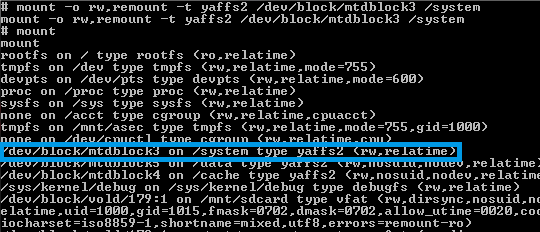
    6. Type “mount

    image

    7. Find the line near the top which mentions “/system”, noting the “ro” in the parentheses at the end of the line
    8. Enter “mount –o rw,remount –t yaffs2 /dev/block/mtdblock3 /system”, replacing “mtdblock3” with whichever mtdblock your line says above.
    9. Enter “mount” again, check that “ro” has changed to “rw”. This means you can now write to your /system partition.

    image

    10. Use “cd” to change to your app folder: “cd /data/app/
    11. Find the installed KeyboardManager using “find *keyboard*

    image

    12. Move the keyboardmanager APK to your /system partition with the command “mv com.android.bg.keyboardmanager-1.apk /system/app
    13. Now you want to reboot your system to load the application again, and also reset your /system partition to “ro” for security. Simply enter “reboot” and hit enter
    14. Once your phone has restarted, open up Keyboard Manager from your application drawer
    15. Choose which keyboards you’d like to use in which orientation, from the displayed drop-downs
    image
    Having used the app for a little bit, it does work, but it’s not instantaneous. It may take a few taps of the text entry field to work. The developer is definitely not done with this project, so at this stage it’s kind of a proof of concept, so don’t be surprised if the experience is a little buggy.
    It’s great to see this issue finally, sort of, pretty much resolved. Check it out and leave your experiences in the comments below. Oh, and do a nandroid, k?

    Download KeyboardManager  : Here